Claude Code Scheduled Tasks & Agents Loop Update: The Complete Guide to AI Automation
Discover how Claude Code's scheduled tasks turn your AI into a 24/7 autonomous agent. Setup in 2 minutes with real use cases and prompts.

Anthropic just released one of the most significant Claude Code updates to date: scheduled tasks. This feature fundamentally transforms Claude from a reactive AI assistant into a proactive autonomous agent that works while you sleep, eats lunch, or focus on other priorities. Here's everything you need to know about this game-changing update.
What Are Claude Code Scheduled Tasks?
Scheduled tasks in Claude Code represent a paradigm shift in AI automation. Instead of the traditional reactive model where you ask and Claude responds, this feature enables Claude to autonomously execute predefined tasks on a predetermined schedule.
Think of it this way: previously, AI tools operated like employees who only work when you tap them on the shoulder. Now, with scheduled tasks, Claude becomes a genuine autonomous agent—a team member who shows up for work at specific times and completes assigned tasks without waiting for your input.
Key Characteristics of Claude Code Scheduled Tasks
- Autonomous Execution: Tasks run automatically on your specified schedule without user intervention
- Full Claude Code Capabilities: Each scheduled run is a complete Claude Code session with access to file editing, command execution, Git commits, pull requests, and MCP tools
- Self-Healing Workflows: The agentic nature means Claude can encounter errors, attempt alternative solutions, and improve itself over time
- Plain English Configuration: You don't need coding expertise—describe tasks in natural language
- Local Execution: Tasks run on your desktop machine through the Claude Code desktop app
How to Set Up Claude Code Scheduled Tasks in 2 Minutes
Step-by-Step Setup Process
The setup process is remarkably straightforward:
- Open Claude Code Desktop App: Launch the Claude Code desktop application on your computer
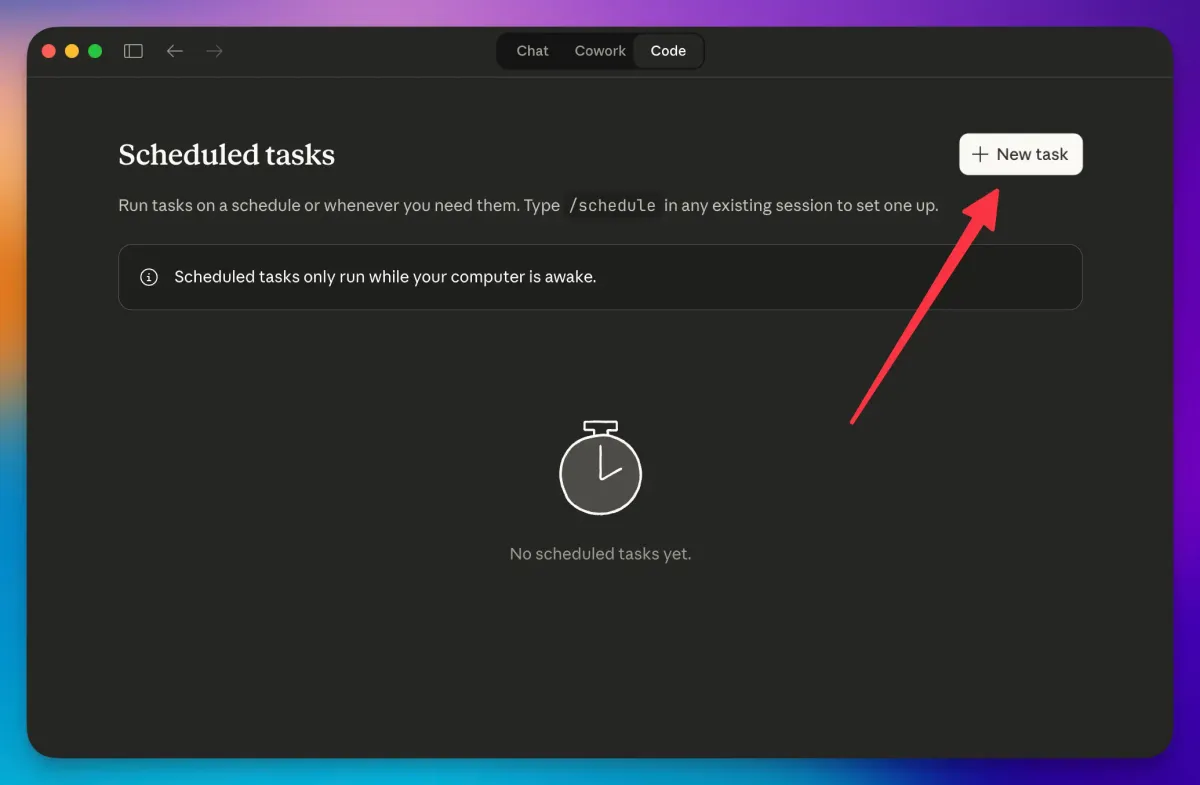
- Navigate to Schedule Tab: Click on the "Schedule" section in the sidebar
- Create New Task: Click "New Task" to begin
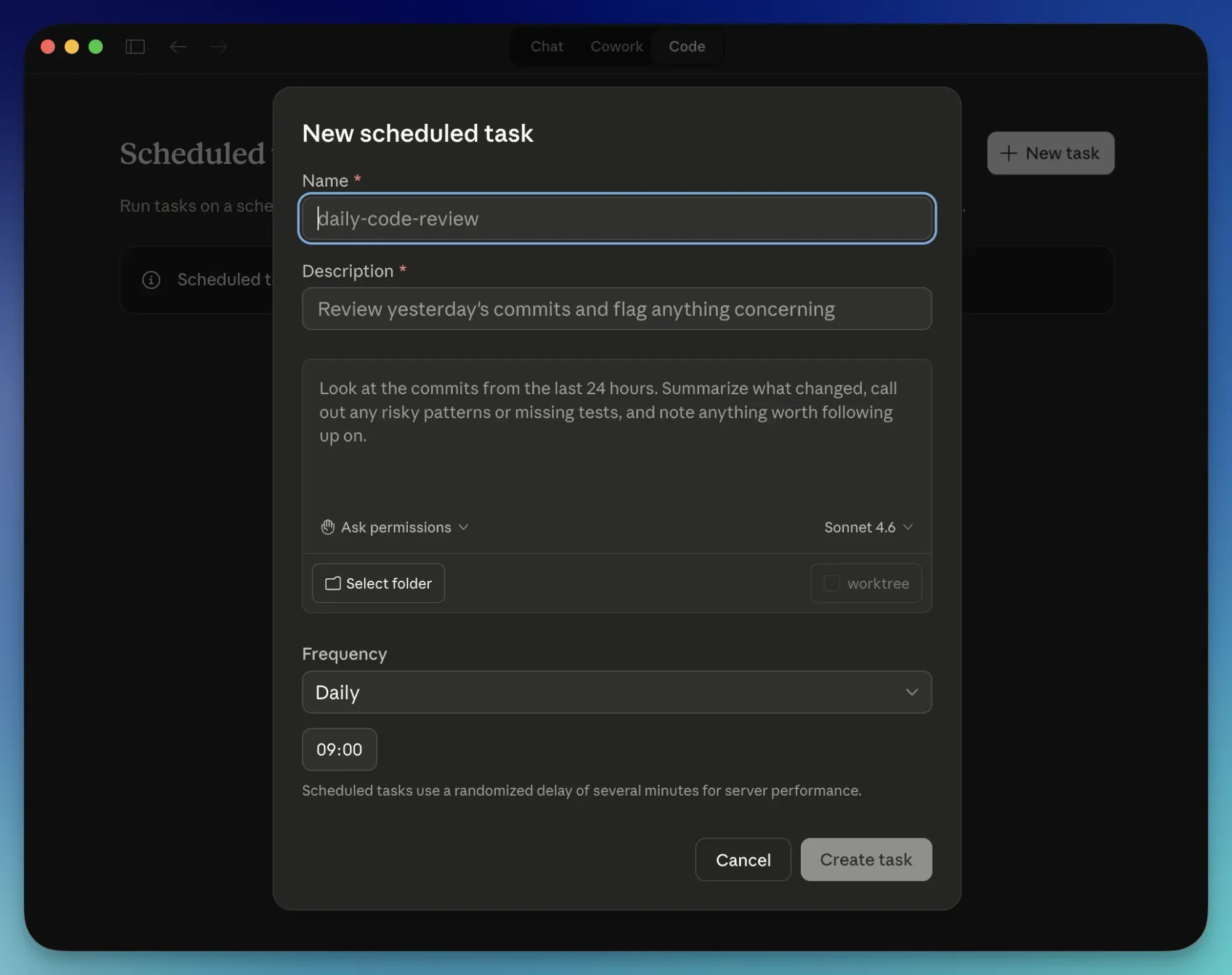
- Configure Four Essential Elements:
- Task Name: A descriptive label (e.g., "Daily Code Review")
- Description: What the task accomplishes
- Prompt: The exact instructions Claude should follow
- Schedule: When and how often it should run
- Test the Task: Click "Run Now" to execute it manually before automating
- Activate Automation: Once tested, the task appears in your scheduled sessions panel
Scheduling Options Available
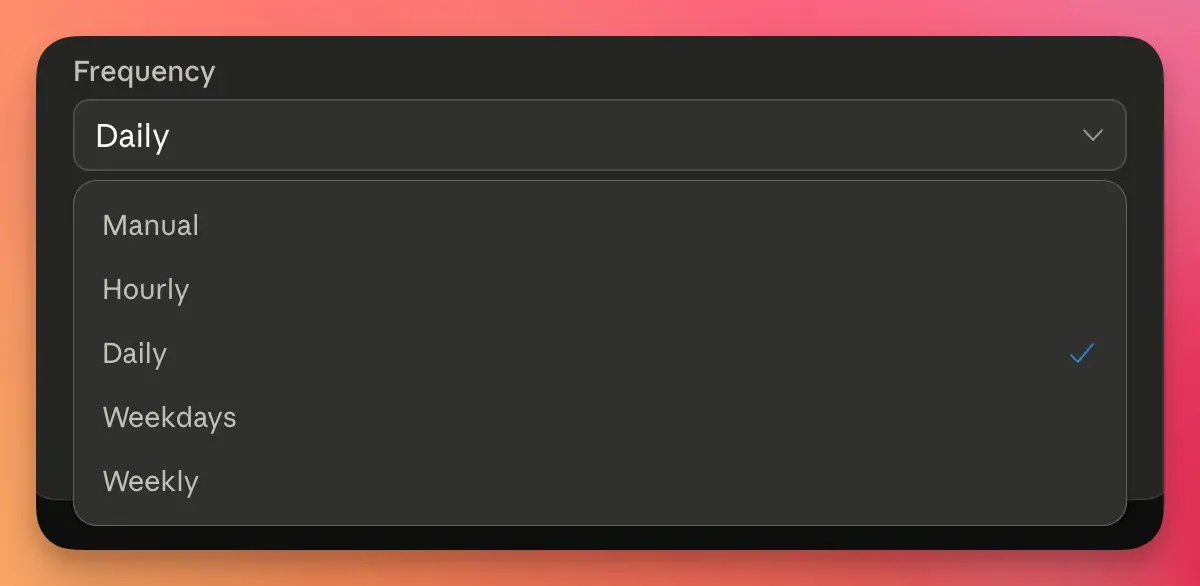
Claude Code offers flexible scheduling options to match your workflow needs:
- Manual: Runs only when you click the execute button
- Hourly: Executes every hour, 24/7
- Daily: Runs at a specified time each day
- Weekdays: Executes Monday through Friday at your chosen time
- Weekly: Runs on a specific day and time each week
Real-World Use Cases: Where Scheduled Tasks Excel
1. Automated Bug Fixing
Schedule Claude to scan your error logs every 3-4 hours. When it identifies recurring errors, Claude automatically:
- Diagnoses the root cause
- Creates a new branch in your repository
- Writes and implements the fix
- Opens a pull request for review
Result: Wake up to pull requests containing automated bug fixes, or find them resolved during your lunch break.
2. Automated Pull Request Reviews
Set Claude to review all new pull requests every morning at 9 AM. The AI:
- Analyzes code changes for potential bugs
- Identifies performance bottlenecks
- Spots security vulnerabilities
- Leaves detailed comments with suggestions
Result: Your team gets comprehensive code feedback before their first coffee, accelerating the review process significantly.
3. Dependency and Package Management
Schedule a weekly task to automatically:
- Check for outdated packages in your dependencies
- Update to the latest stable versions
- Run your test suite to ensure compatibility
- Create a pull request with the updates
Result: Eliminate the tedious task of remembering to update dependencies, preventing the "everything breaks in six months" scenario.
4. Morning Developer Briefings
Create a daily scheduled task at 8:00 AM that generates a comprehensive report including:
- All new GitHub issues filed in your repositories
- Open pull requests awaiting review
- Failing tests that need attention
- Priority recommendations
Result: Start your day fully informed about project status without manual research.
5. AI-Powered DevOps Monitoring
Set Claude to monitor your infrastructure every hour, analyzing:
- Server logs for anomalies
- Test results and deployment status
- Application performance metrics
Claude responds automatically to issues, from scaling servers to investigating performance degradation.
Result: 24/7 monitoring and response without hiring additional operations staff.
6. Continuous Testing and Quality Assurance
Schedule automated test runs every 6 hours with Claude configured to:
- Execute your full test suite
- Diagnose failures immediately
- Propose fixes for failing tests
- Create branches with solutions
Result: Your QA department operates on autopilot with continuous quality assurance.
Ready-to-Use Prompts for Claude Code Scheduled Tasks
Prompt 1: Daily Code Review
"Review the latest commits in [repository-name]. Identify potential bugs, security issues, or performance problems. Write a summary report and suggest specific improvements. Focus on code quality and best practices."
Recommended Schedule: Daily at 9:00 AM on weekdays
Prompt 2: Automated Bug Fixing
"Scan error logs in /var/logs. Identify any recurring errors that have appeared more than twice in the past 6 hours. For each recurring error, determine the root cause and attempt to implement a fix. If a fix is possible, create a new branch named 'fix/[error-name]' and open a pull request with your changes."
Recommended Schedule: Every 3-4 hours
Prompt 3: Morning Developer Briefing
"Generate a comprehensive developer briefing including: (1) all new GitHub issues created in the last 24 hours, (2) all open pull requests with status, (3) any failing CI/CD tests, and (4) priority recommendations for the team. Format as a clean markdown report."
Recommended Schedule: Daily at 8:00 AM on weekdays
Prompt 4: Test Automation and Diagnostics
"Run the complete test suite. For any failing tests, diagnose the issue and propose a fix. If the fix is simple and non-breaking, create a branch and implement it. Otherwise, create a detailed report of what's failing and why."
Recommended Schedule: Every 6 hours
Prompt 5: Dependency Updates
"Check all project dependencies for available updates. Create a new branch, update packages to their latest stable versions, run the test suite to ensure compatibility, and open a pull request with a detailed changelog."
Recommended Schedule: Weekly (e.g., Monday at 2:00 AM)
How Claude Code Scheduled Tasks Work Behind the Scenes
The Technical Architecture
Understanding the mechanics helps you configure tasks effectively:
1. Task Storage and Management
Each scheduled task creates a hidden directory on your machine at ~/.claw/scheduled-tasks/[task-name]/. Inside this folder:
- skill.mmd file: Contains your task configuration (name, description, and prompt)
- Execution logs: Records of each run with timestamps and results
You can edit the skill.mmd file directly to fine-tune your task behavior for the next run.
2. Execution Loop
The Claude Code desktop app operates on this schedule:
- Checks the schedule every minute
- When a scheduled time arrives, launches a brand new Claude Code session
- Executes your prompt with full access to your project files and tools
- Sends you a notification with results upon completion
- Closes the session and waits for the next scheduled execution
3. Self-Improving Agents Loop
This is where scheduled tasks become truly powerful. Each run enables Claude to:
- Encounter Errors: If something fails, Claude doesn't just report the failure
- Attempt Alternative Solutions: Claude tries different approaches to solve the problem
- Learn and Adapt: Through trial and error within a single session, Claude improves its execution
- Update Its Approach: You can configure tasks to update the prompt based on success/failure patterns
This creates self-healing workflows that improve over time without manual intervention.
Important Limitations and Considerations
Computer Must Be On and App Must Be Running
This is the biggest limitation: your machine must be awake and the Claude Code desktop app must be running. This isn't cloud-based automation—everything executes locally on your computer.
However, Anthropic has built in a safety net: When your computer wakes up, Claude can run one "catch-up" task covering missed executions from the past 7 days. There's also an option to keep your computer awake during scheduled runs.
Each Run Counts Against Your Usage
Every scheduled task execution is a full Claude Code session, which means:
- Each run consumes API credits
- Running tasks hourly will use 24 runs per day
- Plan your schedules with usage costs in mind
Platform Availability
Claude Code scheduled tasks are currently available on:
- macOS: Fully supported
- Windows: Fully supported
- Linux: Not yet available (scheduled tasks are being developed for future release)
Stateless Execution
Each scheduled task runs in isolation:
- No memory persists between runs
- Each execution is a fresh session
- If you need state-based logic, build it into your prompts or scripts
Permission and Safety Considerations
Because tasks run without supervision, you should:
- Test Tasks Manually First: Run any new task with "Run Now" to ensure it completes without errors or permission prompts
- Set Restrictive Permissions: Configure your local settings to prevent Claude from making major changes (like deleting files) without approval
- Monitor Initial Runs: Watch the first few automated executions to ensure tasks behave as expected
- Use Audit Logs: Review execution logs regularly to catch any unexpected behavior
The Paradigm Shift: From Reactive to Proactive AI
Why This Update Matters More Than You Think
The significance of Claude Code scheduled tasks extends beyond convenience. This represents a fundamental shift in how AI systems interact with human workflows:
The Reactive Model (Traditional AI)
- You initiate: You ask a question or request
- AI responds: The AI provides an answer
- You wait: You must be present for each interaction
- Limited autonomy: The AI cannot work independently
The Proactive Model (Claude Code with Scheduled Tasks)
- You configure once: Set up the task and schedule
- AI executes independently: Tasks run on schedule without prompting
- You're freed from supervision: You can focus on high-value work
- Genuine autonomy: Claude works like an actual team member
Implications for AI Development
This update hints at where AI is heading:
- Desktop Automation: Currently limited to your local machine, but the foundation is laid
- Cloud-Based Agents: Future versions could run in the cloud, eliminating the "computer must be on" limitation
- Multi-Agent Coordination: Multiple Claude instances could coordinate on complex projects
- AI Teams: Eventually, entire projects could run with minimal human oversight, managed by coordinated AI agents
Best Practices for Claude Code Scheduled Tasks
1. Start Simple and Scale Gradually
Begin with one or two scheduled tasks to understand how they work, then expand your automation portfolio as you gain confidence.
2. Write Clear, Detailed Prompts
Since tasks run without supervision, your prompts must be explicit. Include:
- Exact steps to follow
- Error handling instructions
- What constitutes success
- When to skip execution
3. Always Run Tests Manually First
Before scheduling a task:
- Click "Run Now" to execute it manually
- Observe the entire execution
- Ensure it completes without requesting permissions
- Review the output for accuracy
4. Monitor Execution Logs Regularly
Check your scheduled tasks' execution logs weekly to:
- Verify tasks ran as scheduled
- Identify any patterns in failures
- Catch unexpected behavior early
- Optimize prompts based on actual performance
5. Build in Safety Guardrails
Implement safeguards in your prompts:
- "Do not delete files without explicit confirmation"
- "Skip execution if [condition] is true"
- "Create a draft pull request instead of merging"
- "Notify me if [specific error] occurs"
6. Use Version Control for Task Configurations
Track your scheduled task prompts in version control (the skill.mmd files) so you can:
- Revert to previous versions if needed
- Collaborate with team members
- Maintain an audit trail of changes
Troubleshooting Common Issues
Task Not Running at Scheduled Time
Cause: The desktop app isn't running or the computer is asleep.
Solution: Keep the Claude Code desktop app open in the background. Enable the "keep computer awake" option in settings for critical tasks.
Task Runs but Gets Stuck on Permission Request
Cause: The task needs permissions you haven't pre-authorized.
Solution: Run the task manually first, approve all necessary permissions, then schedule it. Or modify your prompts to avoid permission-requiring actions.
Inconsistent Results Between Manual and Scheduled Runs
Cause: Tasks are stateless—each run has no memory of previous runs.
Solution: Include all necessary context in your prompt. If state is required, build it into your prompt or have Claude reference files that track state.
High API Usage from Scheduled Tasks
Cause: Running tasks too frequently (e.g., every hour).
Solution: Adjust schedule intervals. Use daily or weekly schedules instead of hourly unless necessary.
The Future of Claude Code Agents and Scheduled Tasks
Anticipated Future Developments
Based on the current trajectory, expect:
- Cloud Scheduling: Run tasks in the cloud without requiring your computer to be on
- Inter-Agent Communication: Multiple Claude instances working together on projects
- Persistent Memory: Agents maintaining context across multiple scheduled runs
- Advanced Reporting: Better dashboards and analytics for scheduled task performance
- Integration Marketplace: Pre-built scheduled tasks for common workflows
Conclusion: Claude Code Scheduled Tasks Represent a Major Leap Forward
Claude Code's scheduled tasks feature marks a pivotal moment in AI automation. By transforming Claude from a reactive assistant into a proactive autonomous agent, Anthropic has opened new possibilities for developers and teams.
The setup is remarkably simple—just four fields and a schedule—yet the implications are profound. You can now:
- Automate routine development tasks
- Maintain code quality continuously
- Manage infrastructure 24/7
- Free yourself from repetitive work
- Focus on high-value strategic work
Whether you use Claude Code for bug fixing, code review, testing, or DevOps monitoring, scheduled tasks unlock a new level of productivity. The future of development isn't about working harder—it's about working smarter with AI agents that handle the repetitive work while you focus on what matters.
Start simple: pick one task, write a clear prompt, set a schedule, and watch Claude become your most reliable team member. The future of AI-assisted development is here, and it's already proving itself.